Now available on Google Play and the App Store
Install it on both phones. The Android app and the iPhone app work as a pair.
Both are free to install. The Android app has an in-app purchase.


ANDROID + IPHONE
Carrying two phones?
Get every notification on both.
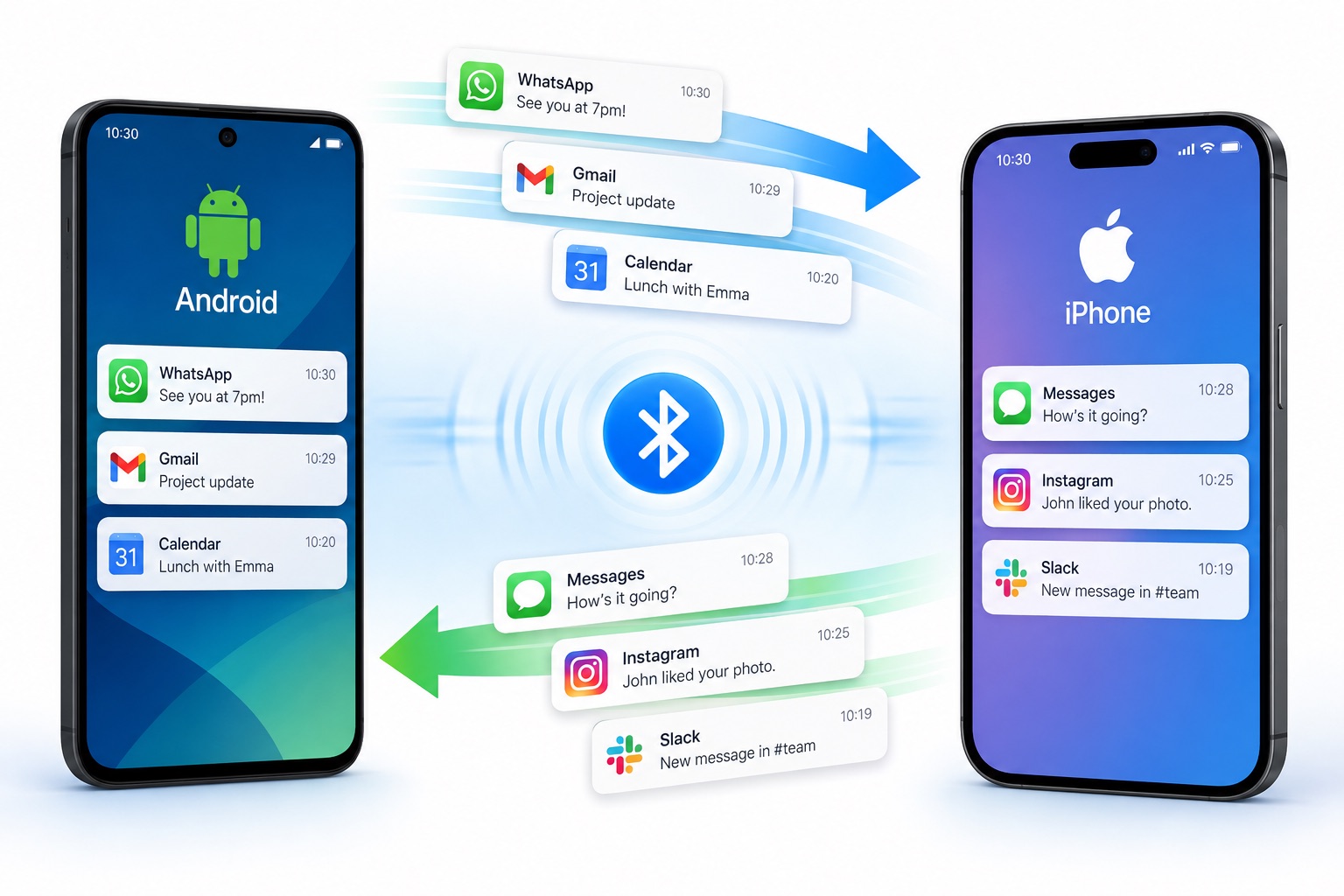
Blue Post Cross is a notification forwarding app that links an Android phone and an iPhone directly over Bluetooth.
A notification that arrives on one phone shows up on the other as well, so there is no need to dig the other one out of your bag. It never connects to the internet, and there is no account to create.
When it helps
It is for people carrying two phones, so that nothing goes unnoticed.
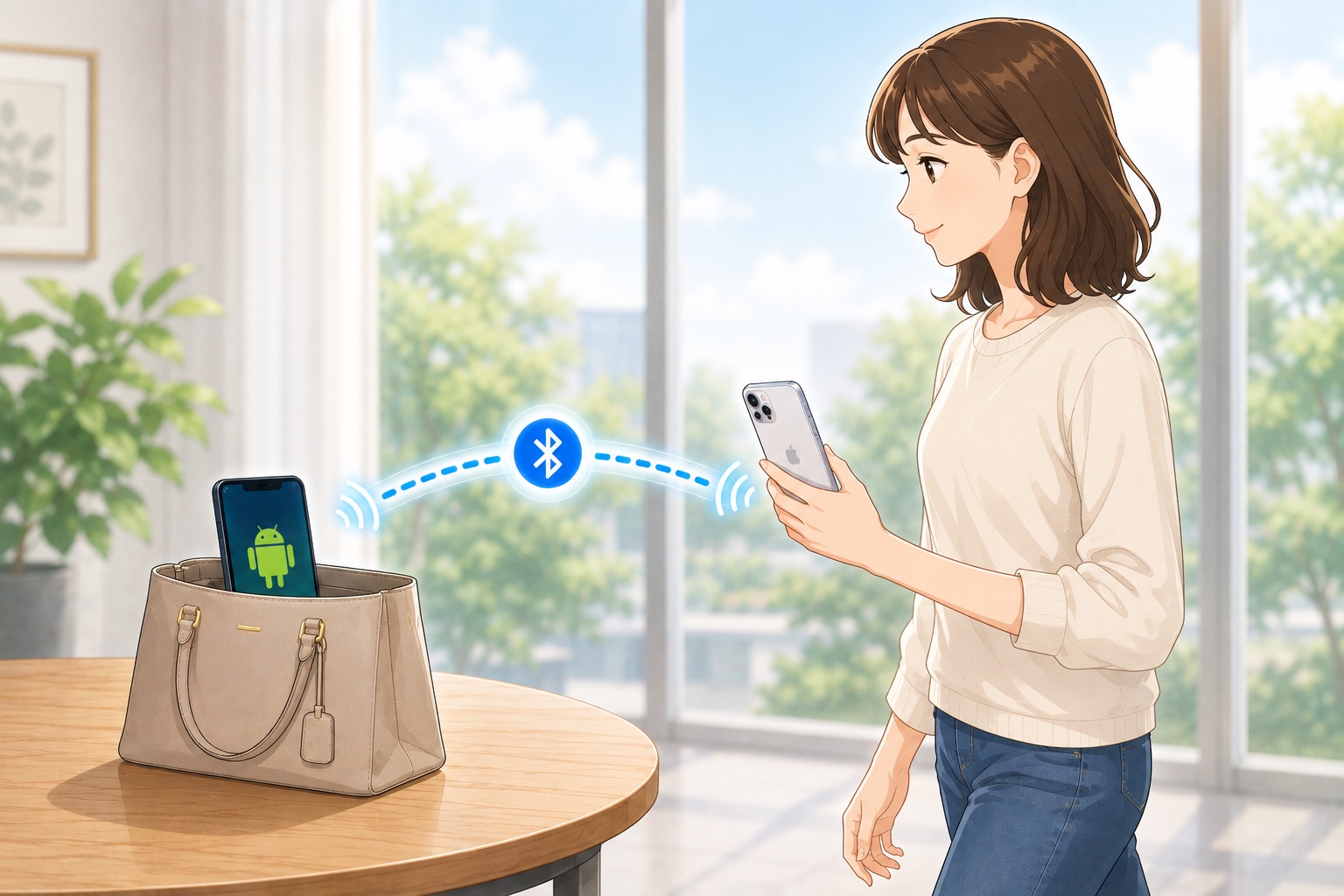
One phone is in your bag
The notification appears on the phone in your hand, so you can read it without taking the other one out.
Work and personal are separate
Messages that arrive on the phone you are not using still reach you on the one you are.
One phone is across the room
Notifications that arrive on the phone left charging can be read on the one beside you.
How it works
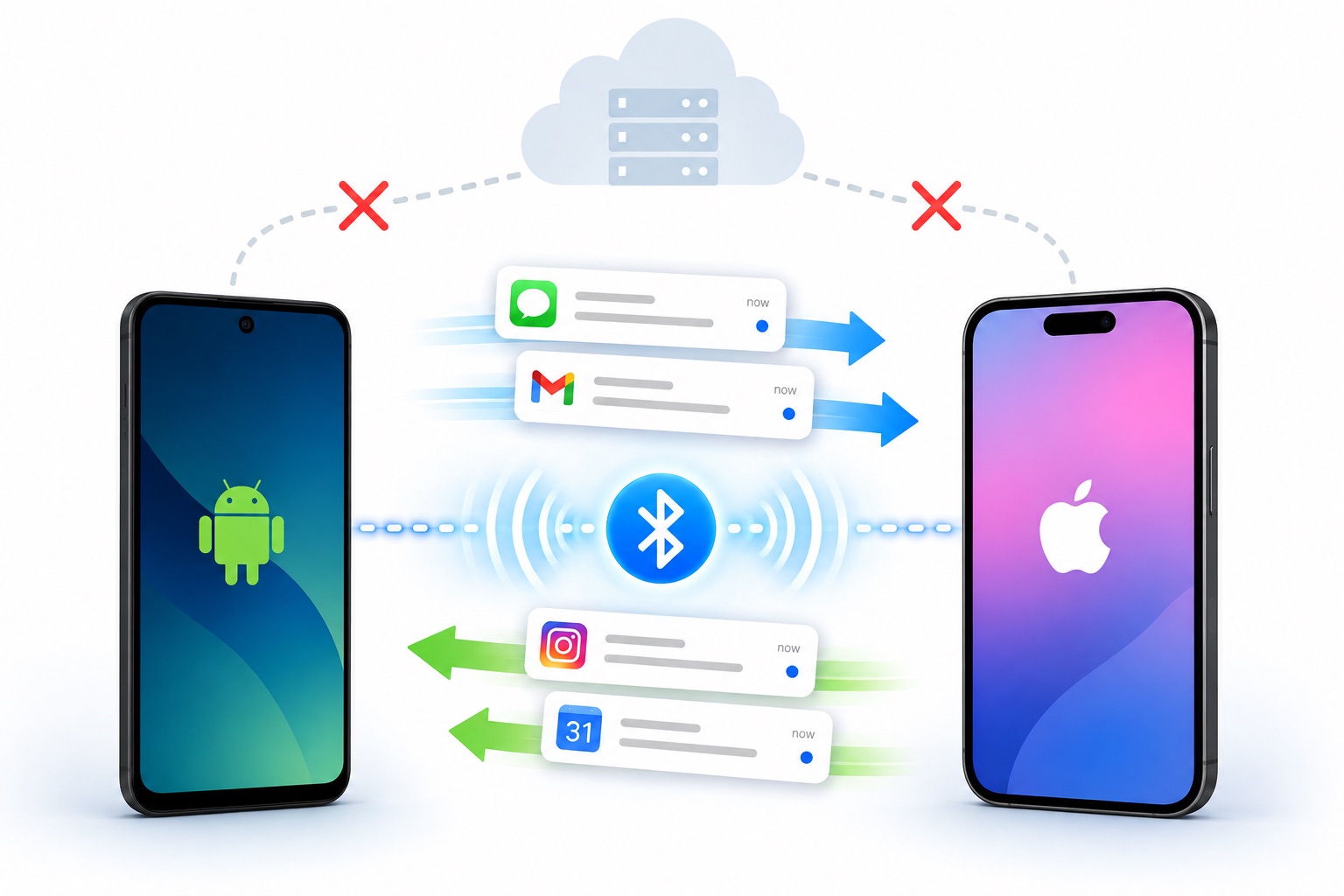
Your two phones connect directly over Bluetooth.
Nothing travels over the internet
The content of a notification flows only between the two phones joined over Bluetooth. Nothing is sent to a server, so there is no account to create, no data charges, and no Wi-Fi needed.
Each phone exchanges data with the single phone it has been registered with, and the content is encrypted on the way.
The link keeps itself alive
Once setup is done, it keeps working without you opening the app. After a phone restarts, or after the two have been apart and out of range, they reconnect on their own as soon as they are close again.
You can check whether they have reconnected at any time, on the home screen and in a notification.
What it does
It forwards notifications between Android and iPhone, in both directions.
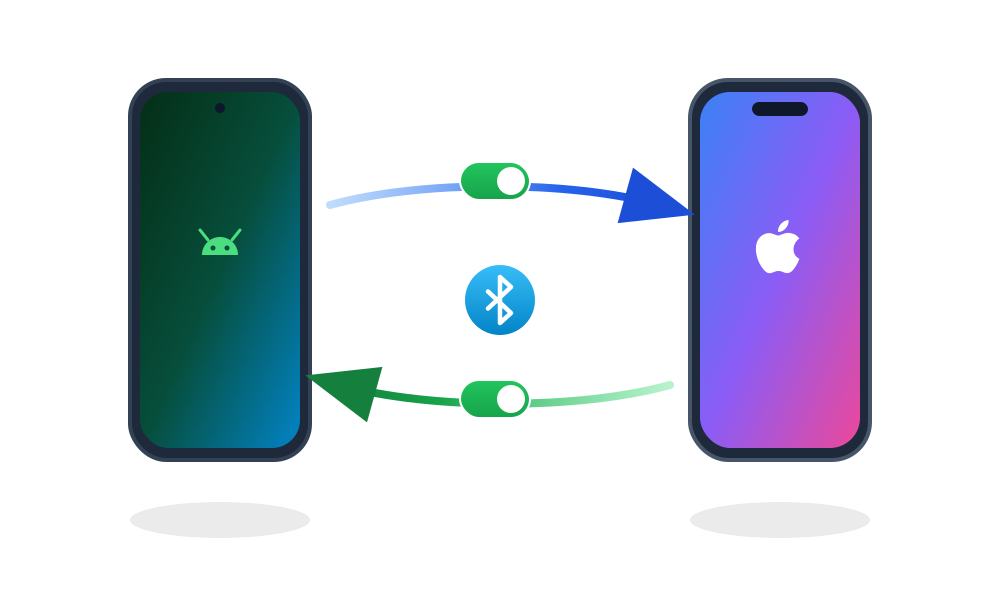
Forwarding runs both ways
Android to iPhone, and iPhone to Android. Notifications can travel in both directions, and each direction has its own switch, so you can use just one of them.
The pair is one Android phone and one iPhone. Two Android phones, or two iPhones, cannot send notifications to each other.
The app name, the title, the body, and the time it arrived are forwarded. A forwarded notification carries the app name at the front of its title, so you can see at a glance which app it came from.
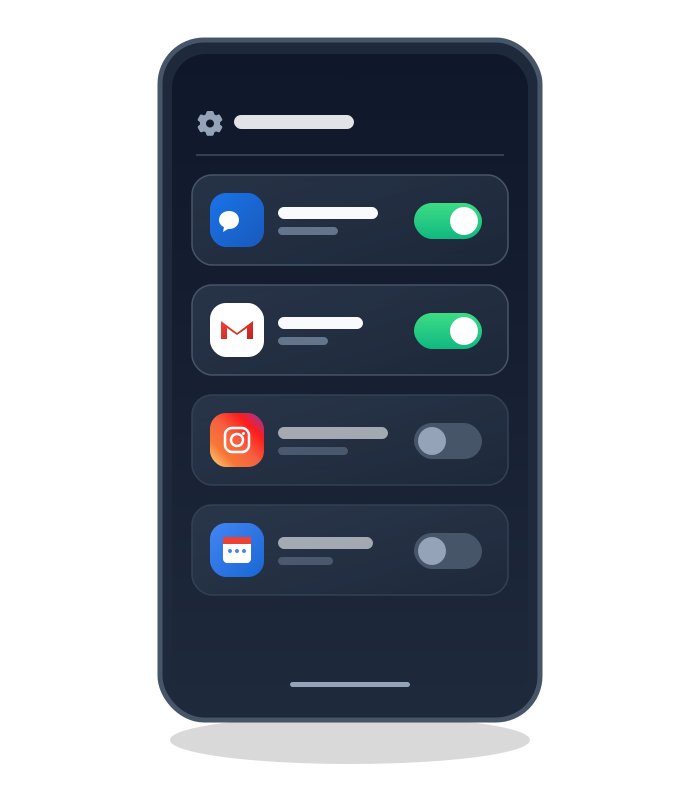
Choose which apps are forwarded
At first, notifications from every app are forwarded. Any app that turns out to be too noisy can be switched off afterwards, one app at a time. You can also switch one off right from a forwarded notification.
All of the settings live in the app on the Android phone. There is nothing to change on the iPhone.
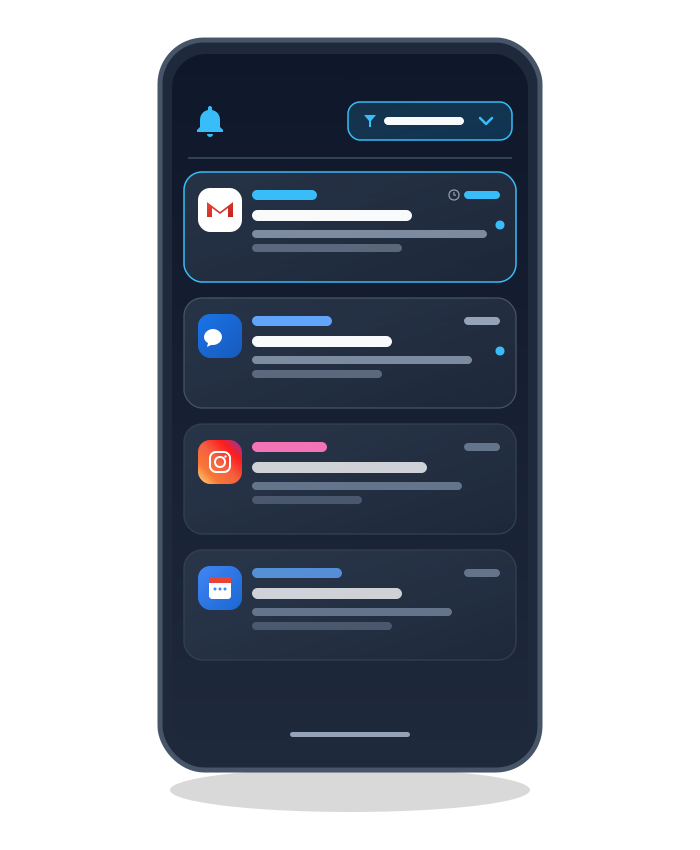
Read forwarded notifications again
For when something arrived and you dismissed it before reading it, the app keeps a list of the forwarded notifications it has received, newest first. You can narrow the list down by app.
Nothing in the list disappears on its own. It disappears only when you delete it. The list is kept on that phone alone and is never taken off it.
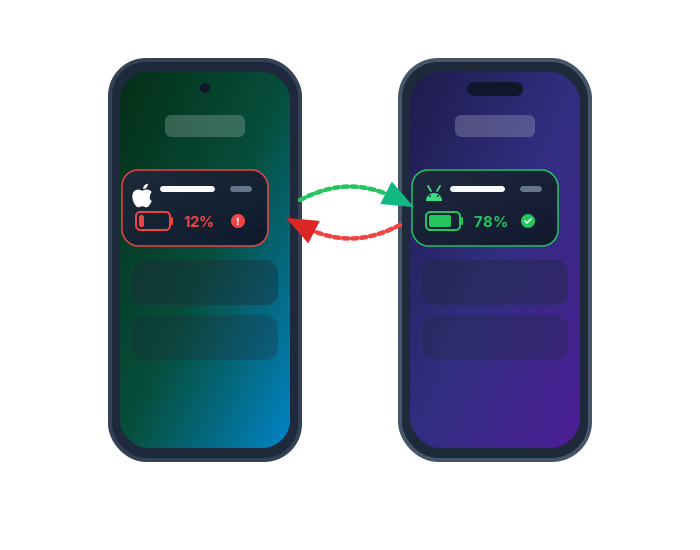
See the other phone's battery level
While the two are connected, they send each other their battery level from time to time. It appears both on the home screen and in a notification, so you can tell whether the phone in your bag is about to run out.
When the other phone drops below 10%, you are told once.
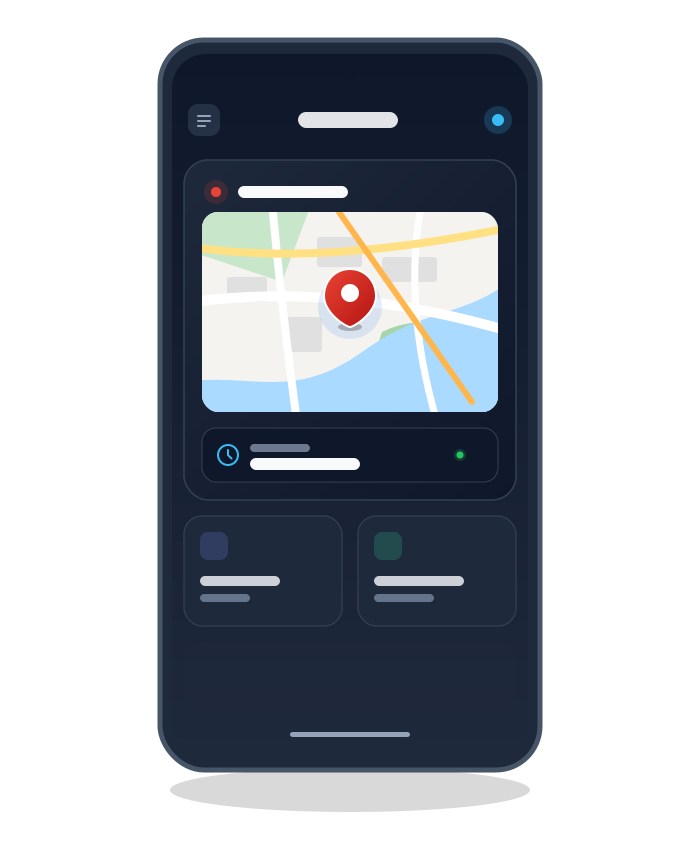
The last place you were connected
When the link drops, the app records the time and the place you were in on a map. It is a clue for telling whether you left the phone at home, walked away from it on a train, or lost the link yesterday.
Location permission is optional. Notification forwarding works just the same without it. The recorded place never leaves the phone, and it is never sent to the other one.
Getting started
Keep both phones at hand for the first registration.
-
Install the app on both phones
Install it on the Android phone and on the iPhone.
-
Grant the permissions on the Android side
Follow the guide on screen to allow, in order, showing notifications, Bluetooth, notification access, and exclusion from battery optimization. The last two take you into the phone's settings screens.
-
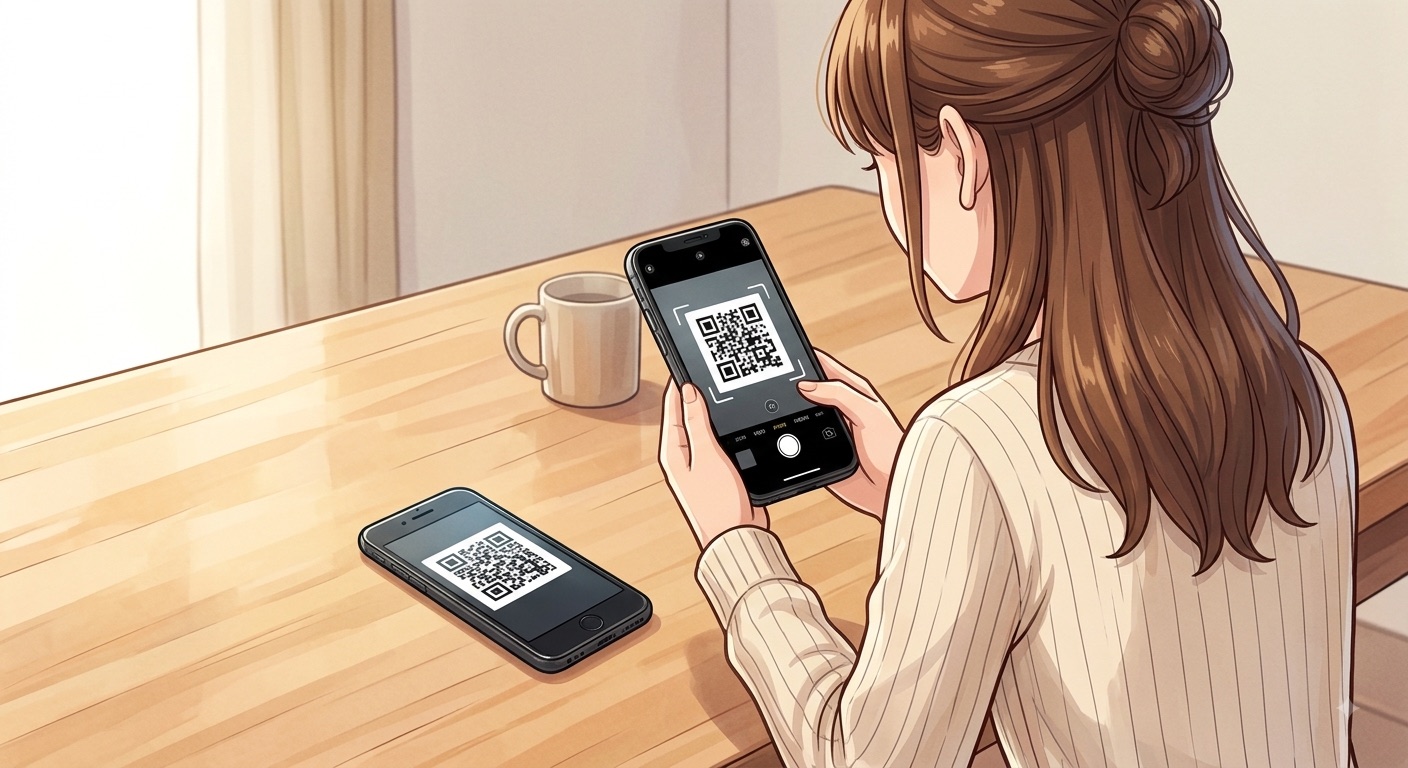
Scan the Android QR code with the iPhone
Scan the QR code shown on the Android screen using the app on the iPhone. This is how the two phones learn each other.
-
Choose "Pair" on the iPhone prompt
After the scan, the iPhone asks you to confirm the registration. Be sure to choose "Pair" here. Then, on the iPhone, open "Settings" → "Bluetooth", tap the name of the other phone, and check that "Share System Notifications" is on. If it is left off, only forwarding from the iPhone to the Android phone will fail to work.
Requirements
You need one Android phone and one iPhone, both with Bluetooth.
| Android | Android 13 or later |
|---|---|
| iPhone | iOS 17 or later |
| The pair | One Android phone and one iPhone. Two Android phones, or two iPhones, cannot send notifications to each other. |
| What you need | Bluetooth switched on for both phones. The iPhone's camera is used to scan the QR code. |
| What you don't need | An account, an internet connection, data charges, Wi-Fi |
For how personal information is handled, please see the Privacy Policy.
Contact
Please email us with any questions or problems.
| Provider | Toshinori Matsui |
|---|---|
| blesimlinker.help@gmail.com |